
Drone Guide
Getting started
Follow the New Model quest to unlock the specialist drones and chest labels. Install drones in a powered station, then select each drone to configure its tasks and chest filters. They return to the station automatically to recharge.
| Drone | Job |
|---|---|
| Agricultural | Plants, waters, fertilizes, and applies mulch. |
| Harvesting | Harvests crops, collects machine products, and picks up drops. |
| Filling | Restocks generator fuel and feed for animals and fish. |
| Processing | Takes ingredients from chests and loads compatible machines with selected recipes. |
| Logistics | Moves items between chests. |
Station range
| Station | Capacity | Coverage |
|---|---|---|
| Small Drone Station | 1 drone | The entire current indoor room. |
| Large Drone Station | 3 drones | 28 × 18 tiles outdoors, plus the entire interiors of buildings overlapping that area. |
The large station's outdoor range is limited both horizontally and vertically. Keep each drone's chests and work targets within its station's coverage.
☆ As long as ONE tile of a chest or building overlaps the large station's range, drones can access that chest or enter that building.
Chest colours and labels
Use Small Wooden Cases or Large Wooden Cases. Colours separate routes, while labels describe the intended contents (Logistics Drones only).
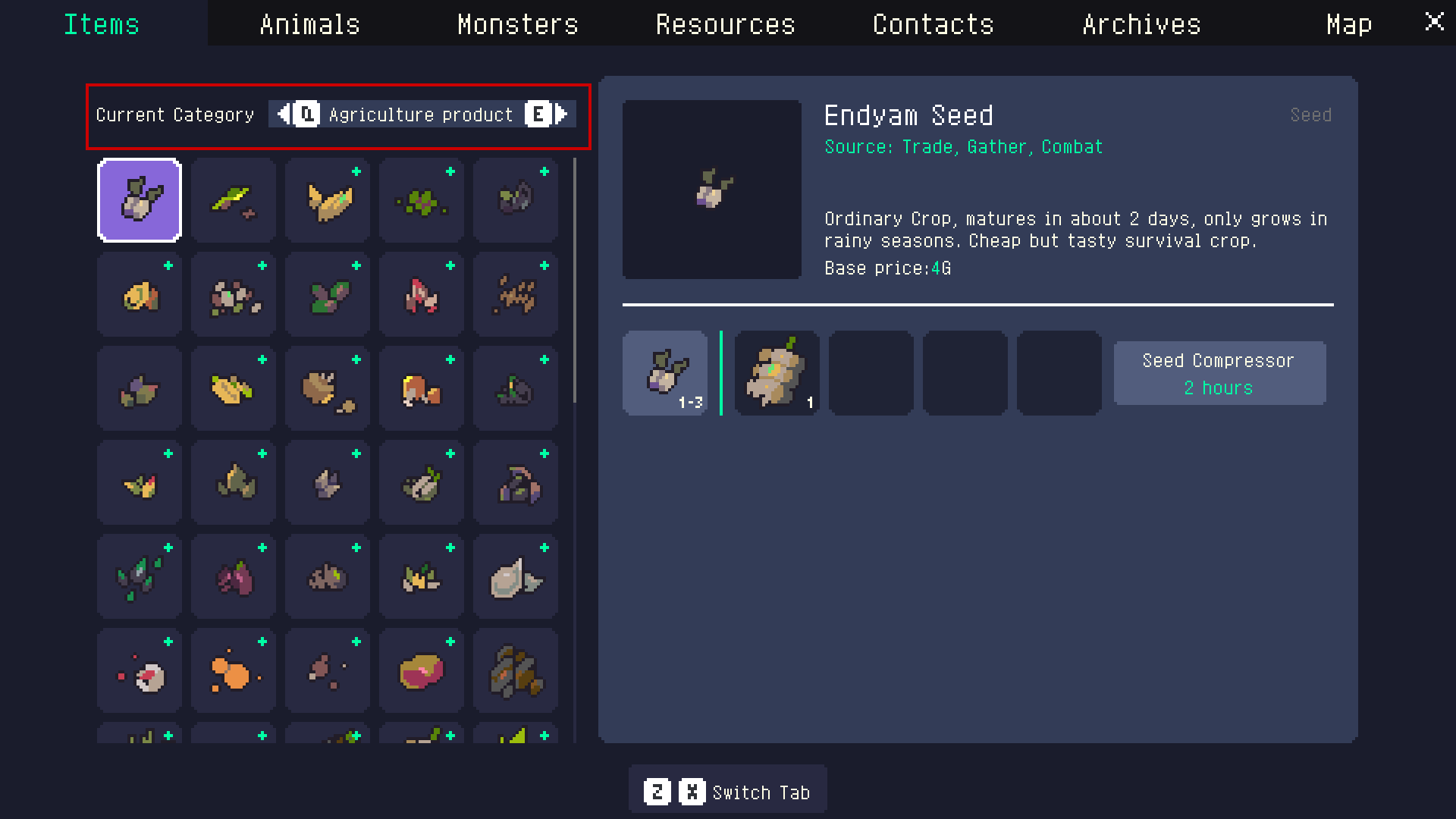
For most items, check Encyclopedia → Items → Current Category, then use the mapping below. Some chest labels combine or rename categories:
| Chest label | Encyclopedia category |
|---|---|
| Tools & Equipment | Tool and Weapon |
| Material | Material |
| Agriculture Product | Agriculture product |
| Husbandry | Not in this dropdown; fish and animal items. |
| Manufacture | Manufacture |
| Construction Items | Equipment |
| Cooking Product | Cooking product |
| Others | Special Items |
Platforms and building blueprints also use Construction Items. Seeds and crops share Agriculture Product, while Compost and Plastic Mulch use Manufacture.
Setting up Logistics Drones
Output = take from this chest. Input = deliver into this chest.
- Put a source and a destination chest within the station's coverage. Give them different colours and suitable labels.
- Open each chest's label/logistics menu and enable Join Logistics.
- Enable Logistics Output on the source and Logistics Input on the destination.
- In the drone's settings, select the source's colour and label under Output Container, and the destination's under Input Container.
- Stock the source and leave space in the destination.
Label filters select chests, not individual items. Logistics prefers matching item categories but can fall back to another eligible input chest. Keep source contents and colour filters specific to avoid mixing routes—especially seeds and crops, which share a label.
To include No Label chests, select all eight labels in the relevant input/output filter. Selecting a subset excludes them.
Input/output permissions only affect Logistics Drones. An input-only seed chest can still supply an Agricultural Drone whose colour filter includes it.
Extending transport with a chest relay
Place a shared chest within both stations' coverage:
Source → Drone A → Relay chest → Drone B → Destination
Example:
| Chest | Colour | Input | Output |
|---|---|---|---|
| Source | Red | Off | On |
| Relay | Blue | On | On |
| Destination | Green | On | Off |
Enable Join Logistics on all three. Set Drone A to red → blue, and Drone B to blue → green. Give the chests suitable labels and select those labels in each drone's filters.
Each drone needs both endpoints of its own route in range. Repeat the relay to carry goods across the farm. Logistics Drones carry up to 30 individual items per trip, not 30 stacks.
Example: the conveyor belt farm
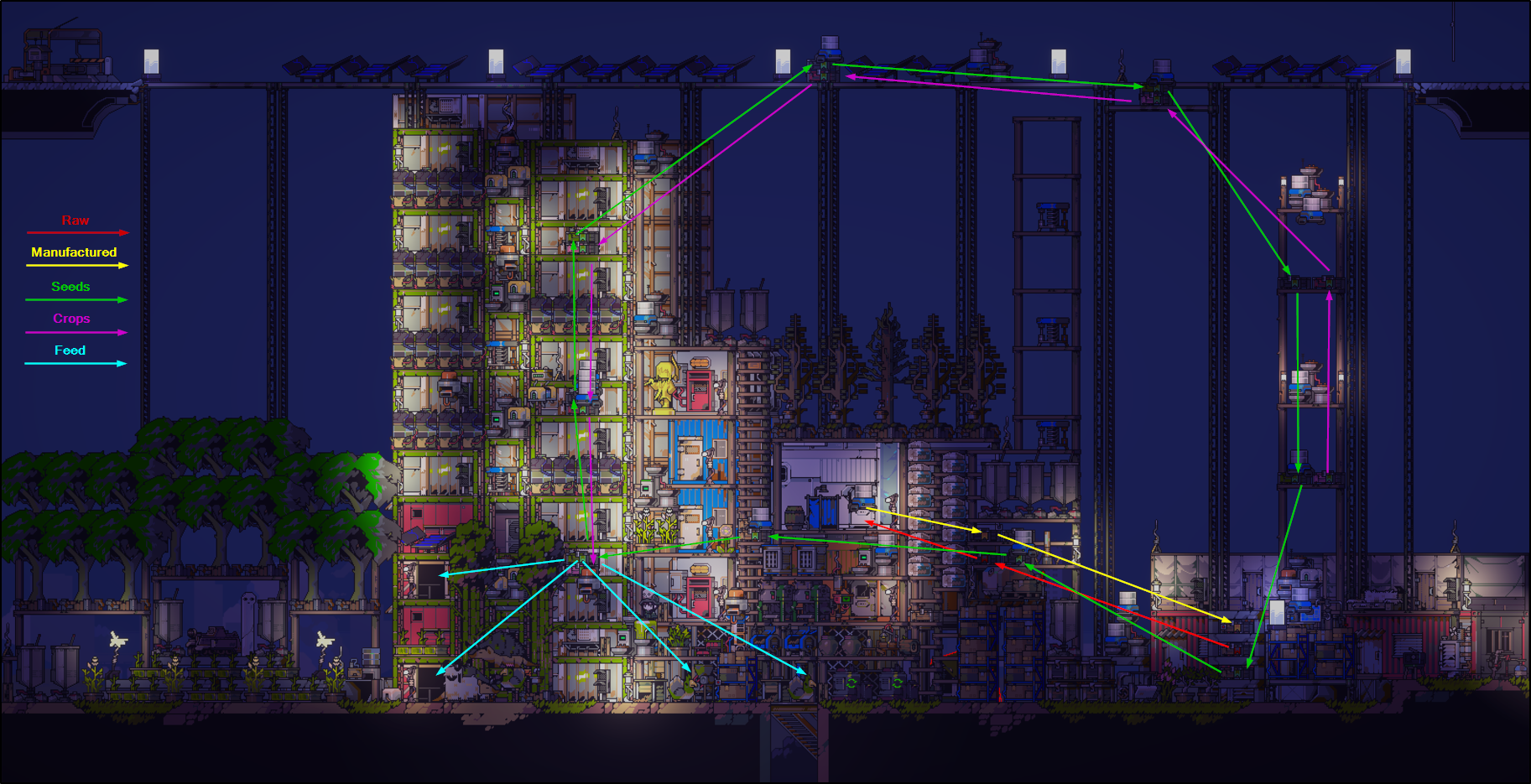
Here, I only have to place raw materials in the bottom-right chests and the logistics drones will transport them to their respective areas for processing. Red arrows carry raw materials, yellow manufactured goods, magenta crops, and cyan feed. These colours describe the routes in the diagram. Plan your chest colours carefully so drones do not use unintended chests. If you are aiming for complex automation like this, it is easy to accidentally have conflicting chest colours.
The green seed route forms a continuous loop. With different travel distances and limited cargo space, the drones in this setup will slowly spread seeds across all the chests along the green path.
Useful notes
- Agricultural Drones need no stored water for watering. You can remove Electric Sprinklers once your Agricultural Drones are set up.
- If work stops, check station power, coverage, chest filters, supplies, and destination space.
Drone bugs
If you encounter these drone bugs, try the following workarounds (not guaranteed to fix the issues):
- Logistics Drone — Standby (Missing Input Chest): Sleep until dawn or restart the game.
- Drones keep taking items out of chests and putting them back: As soon as a drone puts an item back, open the chest and remove that item to break the loop.